
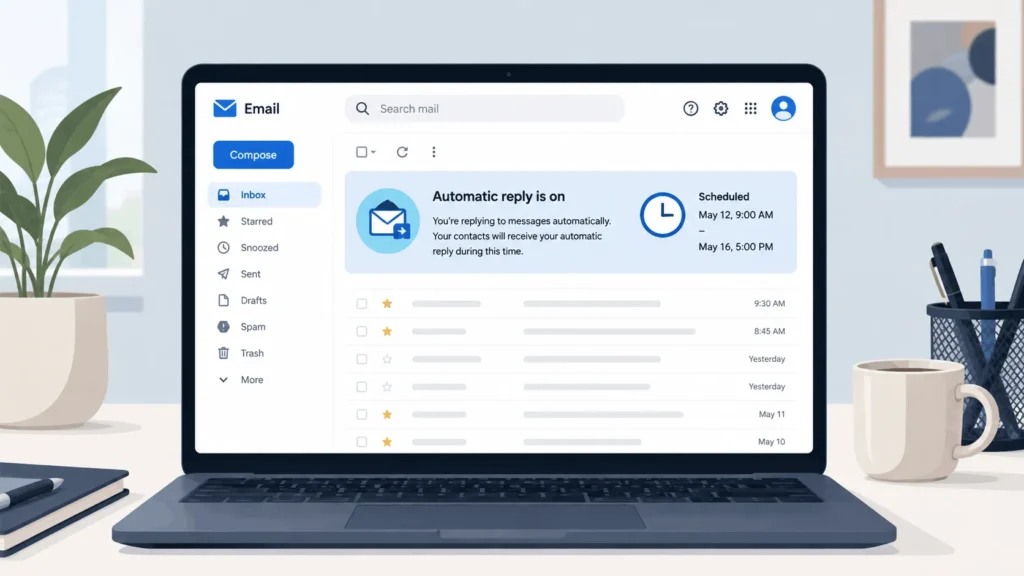

Setting up an out of office message in Outlook takes under two minutes once you know where the setting lives, but the path changes depending on your device and, more importantly, your account type. Exchange and Microsoft 365 accounts get Outlook’s built-in Automatic Replies feature, which runs on a schedule and can send a different message to coworkers than it sends to outside senders. Personal Gmail, Yahoo, or other POP or IMAP accounts added to Outlook don’t get that feature at all, and need a rule-based workaround instead. Both paths are covered below.
Automatic Replies in Outlook for Windows (Desktop)
- Select File, then Automatic Replies. If this button is missing, your account is likely POP or IMAP, so skip to the rules method further down.
- Select Send automatic replies.
- Check Only send during this time range and set a start and end date if you want the message to expire on its own. Skipping this is the most common reason people come back from vacation to find their reply still active a week later.
- On the Inside My Organization tab, write your internal message.
- On the Outside My Organization tab, write a separate external message, and choose My Contacts Only or Anyone Outside My Organization.
- Select OK.
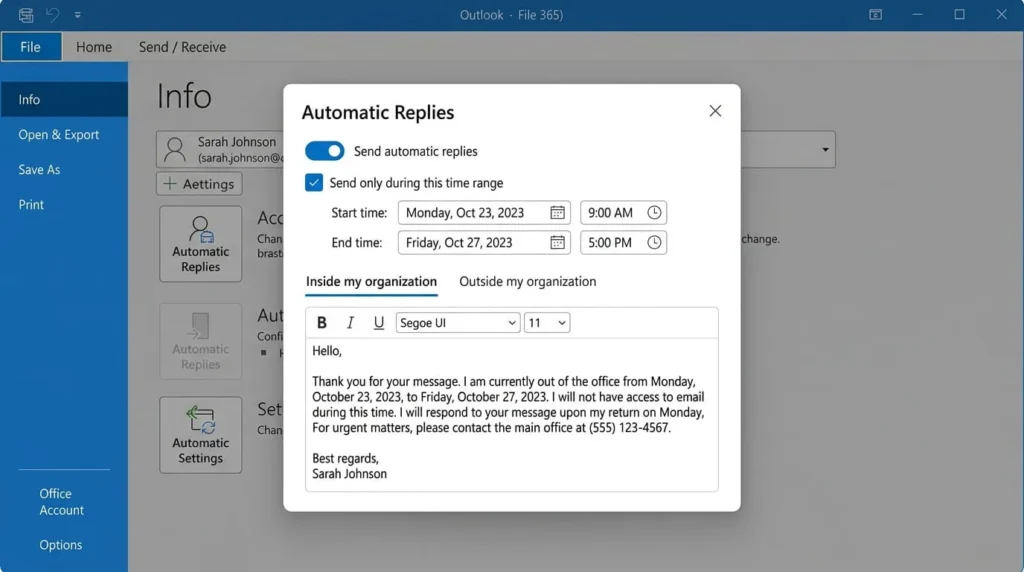
Treat the internal and external tabs as genuinely different messages. Every external sender who emails you while automatic replies are on will get that reply, including cold outreach and phishing attempts, so setting external replies to My Contacts Only is the safer default for most roles.
Automatic Replies in Outlook on the Web
- Sign in to Outlook on the web and select the Settings gear icon.
- Go to Accounts, then Automatic replies (on newer versions, View settings, then Accounts).
- Turn on the Automatic replies toggle.
- Check Send replies only during a time period and set start and end times if you want it to expire automatically.
- Type your internal message.
- Select Send replies outside my organization for external senders, and choose Send replies only to contacts or Send replies to everyone.
- Select Save.
If you skip the end date, come back to this same menu once you’re home and switch the toggle off. Forgetting this step is why so many auto-replies keep firing days after someone has actually returned.
Automatic Replies in Outlook for Mac
- Select Mail in the navigation pane, then open Tools and select Automatic Replies.
- Select your account, then turn on Send Automatic Replies.
- Enter your internal message.
- Toggle Send replies during a specific time period to set a start and end date.
- If enabled by your admin, check Message for outside your organization, choose Send only to my contacts or Send to everyone, and write your external message.
- Close the window to save.
Automatic replies aren’t available on Mac for Gmail, Yahoo, or other POP or IMAP accounts, the same limitation as Windows.
Out of Office on Outlook Mobile
Open the app, tap Settings, select your account, then tap Automatic Replies. Turn on the toggle, enter your message, and set a time range if you want it to expire on its own. Because this syncs at the account level, turning it on or off from your phone applies everywhere, including desktop and web.
No Automatic Replies Button? Use a Rule Instead
POP and IMAP accounts often skip the Automatic Replies feature entirely. Outlook can still auto-reply using a rule tied to a saved template.
- Compose your out of office message, then select File, Save As, and choose Outlook Template (.oft).
- Go to File, Manage Rules & Alerts, and select New Rule.
- Choose Apply rule on messages I receive, then Next.
- Set conditions if you want to limit which messages trigger it, or leave them blank, then Next.
- Check reply using a specific template, then click the underlined template text.
- Under Look In, choose User Templates in File System, select your saved template, then Open and Next.
- Add exceptions if needed, then Next.
- Name the rule, confirm Turn on this rule is checked, and select Finish.
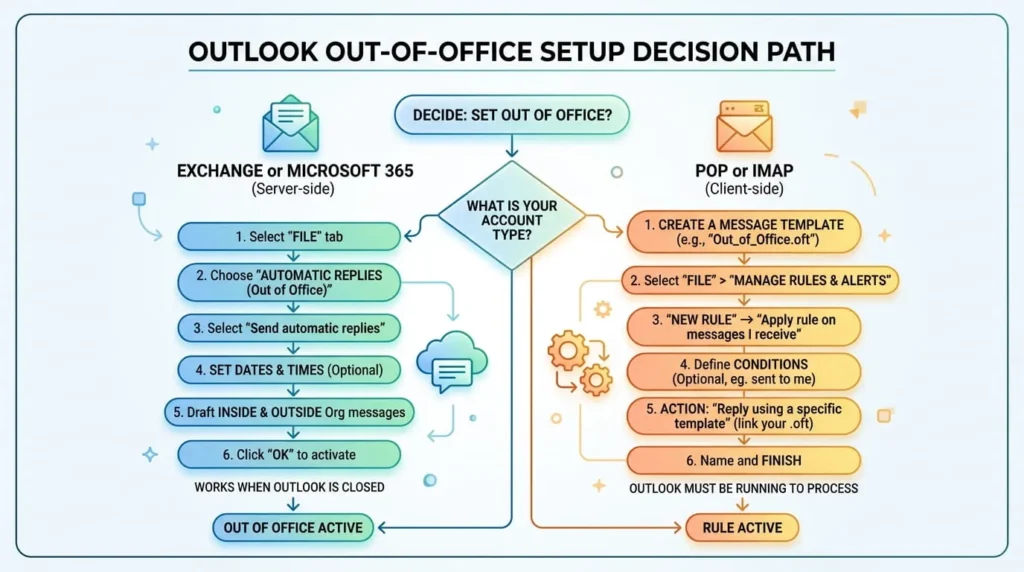
The tradeoff: Outlook needs to stay open and connected for the rule to keep firing, since there’s no server-side reply running in the background. That’s fine for an afternoon out, but it means leaving a laptop on for a two-week vacation, which is the main reason to move to an Exchange or Microsoft 365 account instead.
Turning the Message Off
If you set an end date, Outlook turns the reply off automatically. If not, or you’re back early, return to the same Automatic Replies menu and select Don’t send automatic replies, or flip the toggle off. With the rules method, uncheck the rule in Manage Rules & Alerts rather than deleting it, so it’s ready to reuse next time.
What to Write in Your Message
A good out of office message answers three things fast: are you actually unavailable, when are you back, and what should the sender do meanwhile. Everything past that is optional.
Standard Message
I’m currently out of the office with limited access to email and will return on [date]. I’ll respond to your message as soon as I’m able after I’m back. For anything urgent before then, please contact [name] at [email].
No Backup Contact
Thank you for your email. I’m out of the office until [date] with no access to email during this time. If your request is time-sensitive, please contact [team inbox or general department email] for assistance.
Routing urgent requests to a shared inbox instead of a named coworker keeps a colleague’s personal email address out of every sender’s hands, including senders you don’t know.
Client-Facing Message
Thank you for reaching out. I’m currently out of the office and returning on [date]. Your message is important to me, and I’ll respond as quickly as possible upon my return. If you need immediate assistance, please contact [colleague name] at [email], or call our main line at [phone number].
Extended or Parental Leave
Thank you for your email. I’m currently on leave and will be out of the office until [return date]. I won’t be checking email during this time. For anything that needs attention before I’m back, please reach out to [colleague name] at [email]. I’ll follow up on remaining messages after my return.
What to Leave Out
Automatic replies fire back to everything that lands in your inbox while active, including phishing attempts and scrapers along with legitimate senders. A message listing your exact travel dates, job title, direct phone number, and a colleague’s full name and email hands a scammer most of what’s needed to run a convincing impersonation, either posing as you to request a wire transfer or posing as a client to the backup contact you listed.
A few small adjustments cut that exposure. Skip your personal cell number in favor of a team line or shared inbox. Say “out of the office” rather than naming the exact city or event. If you name a backup contact, use their work email and let them know in advance, so an unexpected message from a stranger doesn’t catch them off guard. None of this requires being vague. Senders still need a return date and a way to get help, they just don’t need your itinerary.
Common Problems and Fixes
1: The Reply Turned Off on Its Own
You likely set an end date and time. Check File, Automatic Replies (or Settings on the web) and extend the date or clear the time range.
2: No Automatic Replies Option Appears
Your account is probably POP or IMAP. Use the rules-based method above instead, and keep Outlook open while you’re away.
3: External Senders Aren’t Getting a Reply
Confirm you separately enabled Send replies outside my organization (or the Outside My Organization tab on desktop). It’s a distinct setting from the internal toggle.
4: It Only Replied Once to Each Person
That’s expected. Automatic Replies sends one reply per sender for as long as it’s active, not a fresh reply to every message from the same person.

Automatic Replies vs. Rules
If your account runs on Exchange or Microsoft 365, use Automatic Replies. It runs on Microsoft’s servers rather than your device, schedules its own start and end date, and sends separate internal and external messages without extra setup. Rules are a fallback for accounts that don’t support Automatic Replies, and they only work while your device stays on and Outlook stays open, which is manageable for an afternoon but impractical for a longer trip.
How Long Before Your Trip Should You Set It Up
Setting the message a day early with a scheduled start date is safer than turning it on the morning you leave. Meetings run long, flights get pushed up, and the last thing anyone wants on their way out the door is to remember an unset auto-reply. Scheduling both a start and end date in advance means the message turns itself on and off without you touching it again, and it removes the risk of forgetting entirely if your last day in the office turns out busier than planned. Pre-trip cleanup usually extends beyond the inbox — a messy spreadsheet is just as easy to fix with this guide on removing empty rows in Excel.