
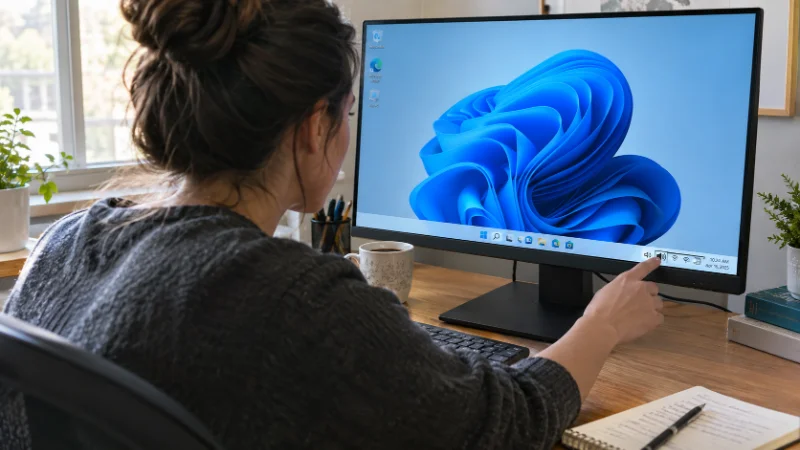

If your Windows PC has gone silent, the fix is usually one of a handful of things: a wrong output device, an outdated driver, or a service that stopped running. Work through the steps below in order, and you will likely have sound back before you reach the last one.
Check the Basics First
Before touching any settings, rule out the obvious. Confirm the volume slider in the taskbar is not muted or turned down, and check that any physical volume dial on your speakers or headphones is not the culprit.
If you are using external speakers, make sure the cable is fully seated in the correct port and that the speakers are powered on. For laptops, try a pair of wired headphones. If sound comes through headphones but not the speakers, the problem is likely with the output device selection rather than the whole audio system.
Run the Windows Audio Troubleshooter
Windows has a built-in tool that catches a surprising number of sound problems on its own. Open Settings, go to System, then Troubleshoot, then Other Troubleshooters, and run “Playing Audio.”
The troubleshooter checks things like disabled audio devices, incorrect default devices, and stopped services, then offers to fix what it finds. It will not catch everything, but it takes under a minute and often resolves the issue before you need to go further.
Check Your Default Playback Device
Windows sends sound to whatever device is set as default, and that is not always the one you expect, especially after connecting a monitor with built-in speakers or a Bluetooth device. Right-click the speaker icon in the taskbar and choose “Sound settings.”
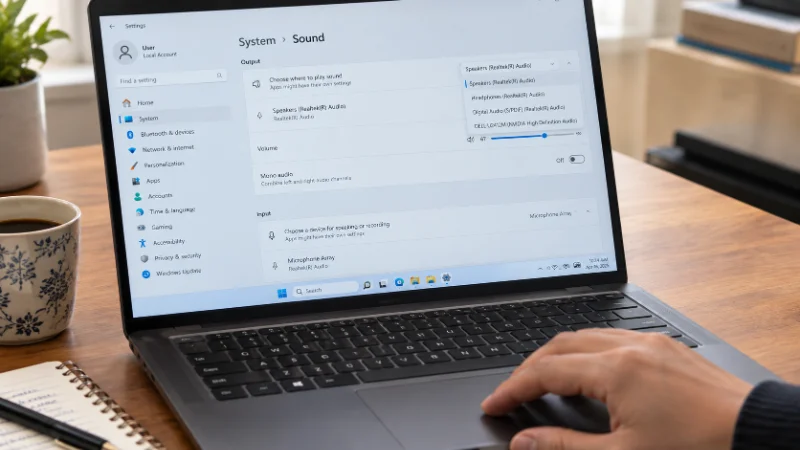
Under the Output section, check which device is selected. If it lists a monitor, HDMI output, or a Bluetooth device you are not using, switch it to your actual speakers or headphones. This single step fixes sound issues more often than any driver update.
Restart the Windows Audio Service
Windows audio runs through a background service, and that service occasionally stops or hangs without any visible warning. Press the Windows key plus R, type services.msc, and press Enter.
Scroll to “Windows Audio,” right-click it, and select Restart. While you are there, check “Windows Audio Endpoint Builder” and make sure both services are set to start automatically and are currently running. If either was stopped, restarting it often brings sound back immediately.
Update or Reinstall Your Audio Driver
Outdated or corrupted drivers cause a large share of Windows sound problems, especially after a Windows update. Open Device Manager, expand “Sound, video and game controllers,” and find your audio device, usually something like Realtek Audio or a laptop manufacturer’s name.
Right-click the device and select “Update driver,” then choose to search automatically. If that finds nothing new, try the reverse approach: uninstall the device entirely (there is a checkbox for “Delete the driver software” on some systems), then restart your PC. Windows will reinstall a fresh driver on boot, which clears out corruption that a simple update sometimes misses.
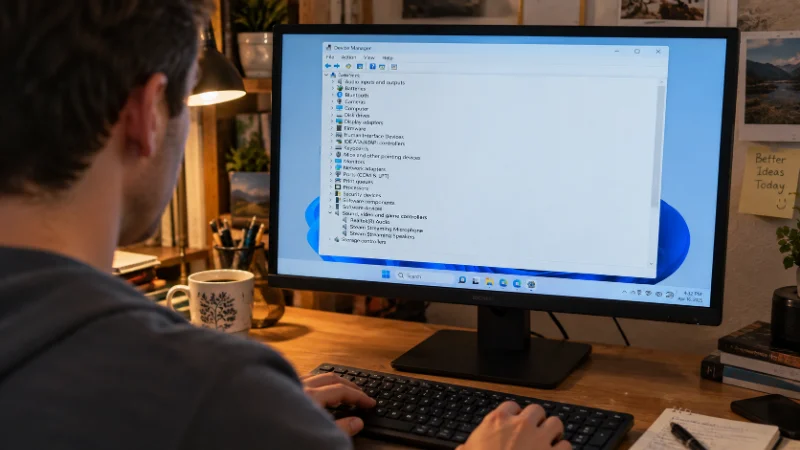
If neither approach works, go to your PC or motherboard manufacturer’s support page and download the audio driver listed for your exact model. Generic Windows drivers work for basic playback but sometimes miss features or fixes that the manufacturer’s own driver includes.
Turn Off Audio Enhancements
Windows and some driver packages add extra processing effects to your audio, and these occasionally cause silence, static, or distortion instead of the improvement they promise. In Sound settings, click your playback device, then look for a tab or section labeled “Enhancements” or “Spatial sound.”
Turn off any enhancements or set spatial sound to “Off,” then test your audio again. If sound returns, you can try re-enabling the enhancements one at a time to find out which one was causing the conflict, or just leave them off if you do not notice a difference.
Check for Conflicting Audio Software
Programs like Realtek’s own control panel, Nahimic, Dolby Atmos apps, or third-party equalizers sometimes conflict with Windows and cause playback to stop entirely. Open the Start menu and check for any of these installed alongside your standard sound settings.
If you find one, open it and look for a similar output or enhancement setting that might be overriding Windows defaults. As a test, you can also disable the app from Task Manager’s Startup tab, restart your PC, and see if sound returns without it running in the background.
Update Windows Itself
Microsoft regularly patches audio-related bugs, and running an outdated build of Windows can leave you stuck with a problem that has already been fixed for other users. Go to Settings, then Windows Update, and check for and install any pending updates.
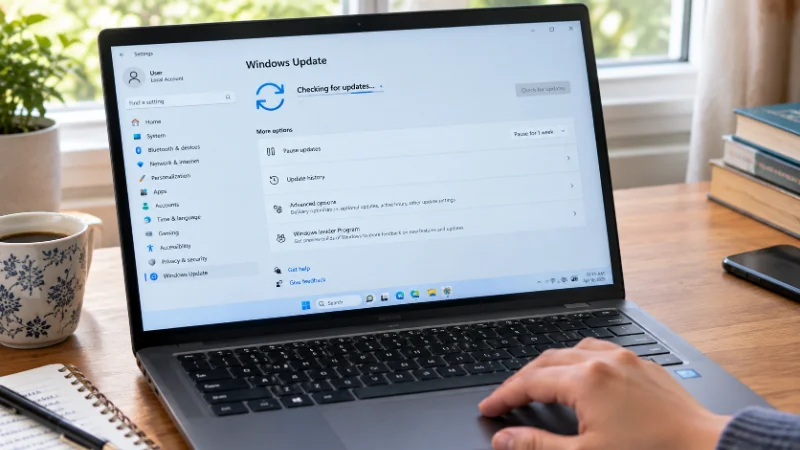
After installing updates and restarting, check your sound again. This is worth doing even if your driver already appears current, since some fixes come through Windows updates rather than driver packages.
Check Hardware Connections and BIOS Settings
If you have gone through every software step and still have no sound, the issue might sit outside Windows entirely. Reseat any audio cables, try a different port if your PC has more than one, and test with a second pair of speakers or headphones to rule out a bad cable or jack.
On desktop PCs, onboard audio can sometimes be disabled in the BIOS or UEFI settings, particularly if a sound card was installed at some point and the motherboard defaulted to disabling its own audio chip. Restart your PC, enter the BIOS setup (the key varies by manufacturer, often Delete or F2), and look for an “Onboard Audio” or “HD Audio” setting under Integrated Peripherals or a similar menu, then make sure it is enabled.
When to Consider a Hardware Problem
If sound still does not work after all of the above, and a different pair of speakers or headphones also produces nothing, the audio chip itself may have failed. This is more common on older laptops or PCs that have been through a liquid spill or a power surge.
At this point, a USB audio adapter is a low-cost way to confirm the diagnosis. If a USB adapter produces sound where the built-in audio does not, you have your answer, and you can either keep using the adapter or have the internal hardware looked at by a repair technician.