
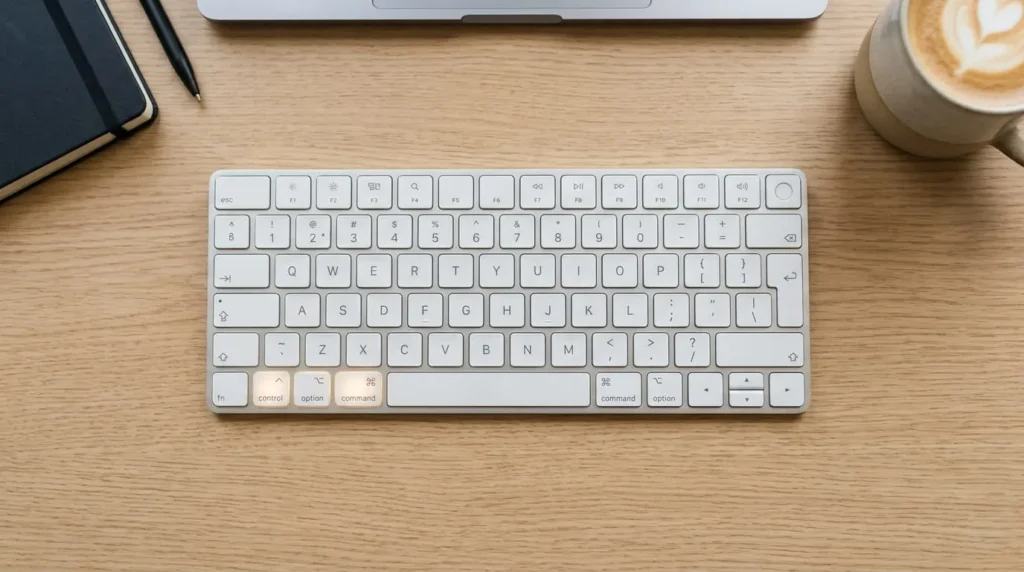

The fastest way to add an emoji on a Mac is a single keystroke: Control + Command + Space. This opens the Character Viewer, a floating panel where you can browse, search, and drop emoji straight into whatever you are typing. No extra software, no menu digging, just one shortcut that works in almost any app.
That said, the default shortcut is only the starting point. Newer Macs have a dedicated globe key that does the same job faster, you can search emoji by typing a description instead of scrolling, and you can even build your own single-key shortcuts for the emoji you use most. This guide walks through all of it, plus what to do when the shortcut refuses to cooperate.
The Basic Emoji Keyboard Shortcut on Mac
Click into any text field where you want an emoji to appear. This can be a Messages thread, a Pages document, a browser search bar, almost anywhere text can be typed.
Press Control + Command + Space at the same time. A small emoji picker will pop up right where your cursor is.
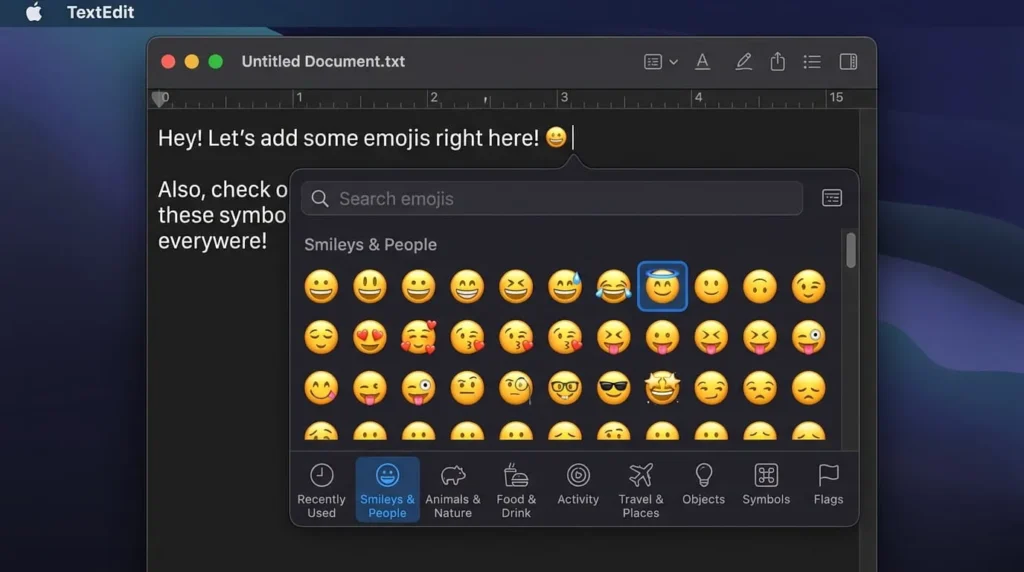
Double click any emoji to insert it, or single click it and hit Return. You can also click and drag an emoji directly into your document if you want more control over its placement.
The picker opens with a grid of recently used and suggested emoji. Scroll down and you will find full categories, including Smileys and People, Animals and Nature, Food and Drink, Travel and Places, Objects, Symbols, and Flags. Click any category icon along the bottom edge to jump straight to it instead of scrolling.
Using the Globe Key Instead
If your Mac was made in the last several years, you likely have a dedicated globe icon on your keyboard, usually sharing a key with fn in the bottom left corner. Pressing that key alone opens the same Character Viewer as the keyboard shortcut, without needing to hold three keys down.
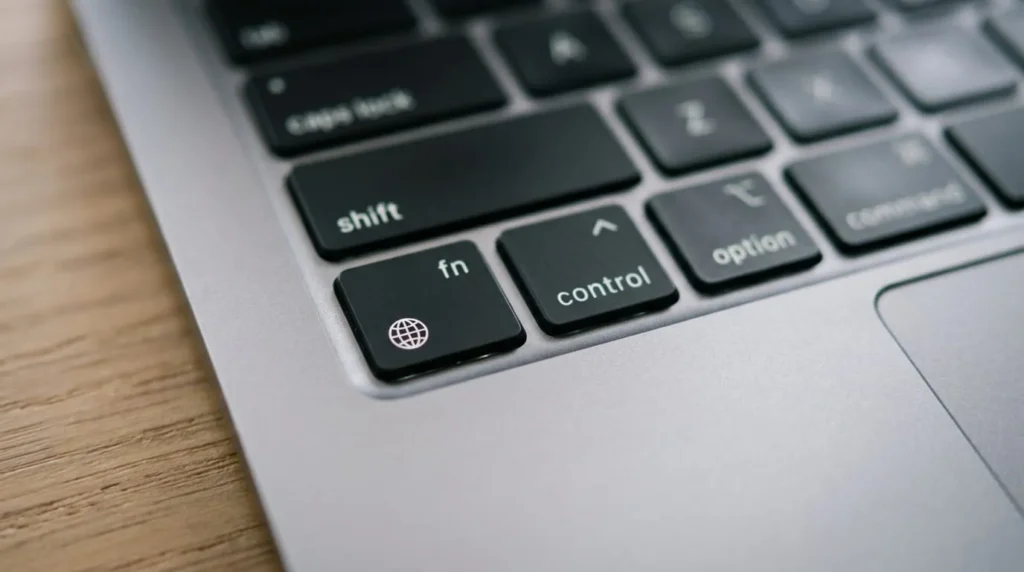
This is worth switching to if you type emoji often, since a single tap is faster than a three finger combination. If pressing the globe key does something else, like switching input languages, you can reassign what it does in a few steps covered below.
What To Do When the Emoji Shortcut Does Not Work
Every so often, Control + Command + Space or the globe key will not bring up the emoji panel. This usually comes down to one of a few causes rather than anything broken on your Mac.
1: The App Is Intercepting the Shortcut
Some apps, particularly browser-based tools like Google Docs or certain web forms, use Control + Command + Space for their own function or simply swallow the input. If this happens, click outside the app first, in the Finder or on the desktop, press the shortcut there, then drag the emoji into the app once it appears. Alternatively, try the fn plus E combination, which triggers the Character Viewer through a different path and often works where the standard shortcut does not.
2: The Globe Key Is Set to Something Else
If tapping the globe key switches your keyboard input source instead of opening emoji, go to the Apple menu, then System Settings, then Keyboard. Find the setting labeled Press globe key to, and change it to Show Emoji and Symbols. This makes a single tap of that key open the Character Viewer every time.
3: General Mac Slowdowns
If the picker opens but feels sluggish, or emoji take a moment to insert, that is more often a sign of a Mac running low on resources than a shortcut problem. Keeping your storage from filling up and closing unused background apps usually clears this up.If you’re setting up a Mac for daily work rather than just fixing a slowdown, running two monitors is one of the bigger productivity upgrades — here’s how to set that up on a Mac.
Searching for a Specific Emoji by Name
Scrolling through categories works fine when you already know roughly where an emoji lives. When you do not, the Character Viewer has a search field at the top. Click it and type a plain description, like fire, heart, or laptop, and every matching emoji will appear instantly.
This search also understands more specific terms. Typing thumbs up, for instance, narrows results down to skin tone variations of that single gesture, which is faster than hunting through the full Smileys category by eye.
Customizing Your Emoji Keyboard Shortcut
The default combination is not fixed. You can change which keys open the Character Viewer, and you can go further by assigning specific emoji to their own shortcuts.
Changing the Trigger Combination
Open System Settings, then Keyboard, then Keyboard Shortcuts. In the sidebar, select App Shortcuts, then click the plus button. Choose All Applications from the Application menu, type Emoji and Symbols as the Menu Title, click into the Keyboard Shortcut field, and press whichever combination you want to use instead, such as Command Shift E. This is useful if the default shortcut clashes with something you use in another app.
Setting Up Shortcuts for Individual Emoji
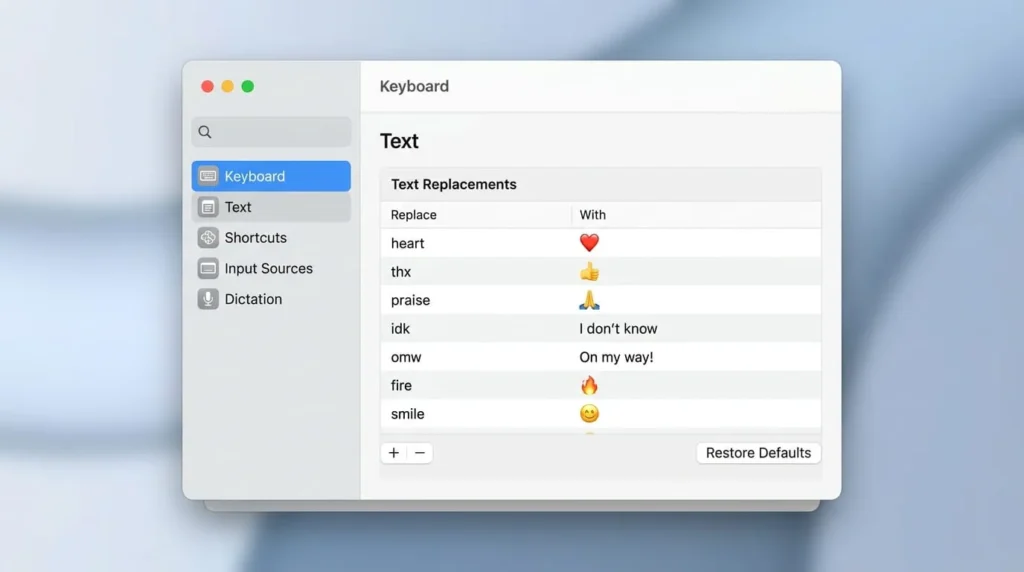
If there are a handful of emoji you type constantly, Text Replacement lets you skip the picker entirely. Open System Settings, then Keyboard, then Text Replacement. Click the plus button, type a short trigger phrase in the Replace field, such as fire1, then paste the emoji itself into the With field. From then on, typing that trigger anywhere on your Mac automatically swaps in the emoji, and the same replacement syncs to your iPhone and iPad if they share an Apple ID.
For anyone who wants dedicated single keystrokes rather than typed triggers, a small number of third party utilities can bind individual emoji to custom key combinations. This is a reasonable step up only if you are inserting the same one or two emoji dozens of times a day, since it adds a layer of software most people do not need for occasional use.
Pinning the Emoji Icon to Your Menu Bar
If you would rather click than use a shortcut at all, you can add a permanent emoji icon to your menu bar. Open System Settings, then Keyboard, then Input Sources, and turn on Show Input Menu in Menu Bar. A small icon will appear at the top right of your screen, and clicking it gives you a menu that includes Emoji and Symbols alongside your language input options.
This is a good backup method for anyone who finds keyboard shortcuts easy to forget, or who switches between multiple keyboard layouts and wants one consistent place to find emoji regardless of which layout is active.
Saving Favorite Emoji for Faster Access
The Character Viewer keeps a Frequently Used row at the top automatically, but you can also build a dedicated favorites list. Click the small grid icon near the top right corner of the picker to expand it into the full window view. From here, right click any emoji and select Add to Favorites. Your favorites collect in their own section, so the emoji you reach for daily are always one click away instead of buried in a longer category.
Which Method Should You Actually Use
For occasional emoji use, the default Control + Command + Space shortcut is enough on its own and needs no setup. If you have a newer Mac with a globe key, switching that key to open emoji directly is a small change that saves a step every single time. Text Replacement is worth setting up only for the two or three emoji you genuinely type every day, since anything beyond that becomes harder to remember than it is worth. The menu bar icon suits anyone who prefers pointing and clicking over memorizing key combinations, and it is the most forgiving option if shortcuts do not stick in your memory.
How the Shortcut Behaves Across Different Apps
The emoji keyboard shortcut is meant to work everywhere, but a few common apps handle it slightly differently, and knowing this saves you from thinking something is broken.
In Messages and Mail, the shortcut behaves exactly as expected. Press Control + Command + Space, click an emoji, and it drops in at your cursor with no extra steps.
In Slack and Discord, both apps have their own built-in emoji pickers triggered by typing a colon followed by a keyword, such as fire. The system shortcut still works, but an accidental colon may bring up the app’s picker instead. Pressing Escape closes it so you can try again.
In browser-based apps like Google Docs or Gmail, the browser sometimes intercepts the shortcut, especially with certain extensions installed. If the picker does not appear, click outside the browser window, trigger the Character Viewer there, then drag the emoji back into your document.
In Terminal and other developer tools, some emulators remap Control combinations for their own commands. If that happens, the globe key is the simplest fix, since it bypasses Control entirely.
Quick Reference
Open the Character Viewer: Control + Command + Space, or tap the globe key on newer keyboards.
Fallback shortcut: fn + E, useful in apps that block the main shortcut.
Search by name: click the search field inside the picker and type a description.
Change the shortcut: System Settings, Keyboard, Keyboard Shortcuts, App Shortcuts.
Create single emoji shortcuts: System Settings, Keyboard, Text Replacement.
Add a menu bar icon: System Settings, Keyboard, Input Sources, Show Input Menu in Menu Bar.
Once one of these methods becomes second nature, adding emoji stops being a separate task and just becomes part of how you type.