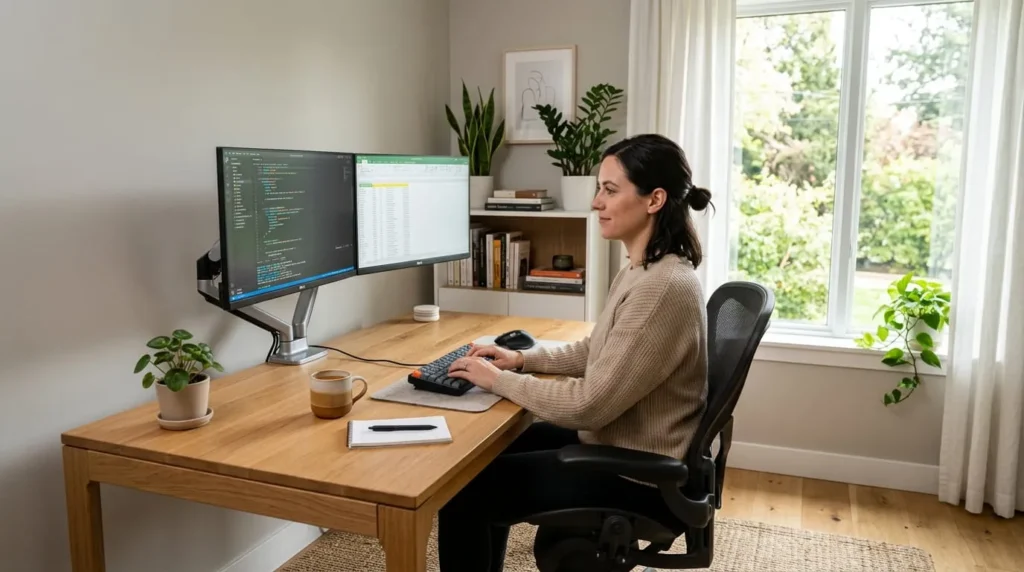

Working from home offers flexibility, but a poorly planned workspace quickly leads to physical discomfort, constant distractions, and mental fatigue. Setting up a dedicated workspace is more than buying a desk and plugging in a laptop. It requires a deliberate approach to room layout, light exposure, physical ergonomics, and daily workflow management.
Whether converting a spare bedroom, carving out a nook in a living area, or redesigning an existing workspace, knowing how to set up a home office properly ensures long-term comfort and productivity.
Selecting the Best Location for Your Workspace
The location of your workspace directly affects your ability to concentrate. Before purchasing any furniture, evaluate the layout of your living space to find an environment that minimizes interruptions.
Dedicated Rooms vs. Shared Spaces
A separate room with a door that closes is always the ideal choice. Physical doors create a psychological boundary between your professional responsibilities and personal life, while also blocking out household noise during video calls.
If a separate room is unavailable, select a low-traffic zone in your home. A quiet corner in a guest room or a clean dining room nook works significantly better than a kitchen island or a living room couch. Avoid areas immediately adjacent to high-traffic household paths to prevent constant visual and auditory interruptions.
Evaluating Natural Light and Privacy
Positioning your workspace near a window boosts energy levels and reduces eye strain. However, window orientation matters. Avoid placing your desk directly facing an unshaded south-facing window, as the intense midday glare causes severe glare and eye fatigue. Placing your desk directly in front of a window also turns your face into a dark silhouette on video calls.
Position your desk perpendicular to the primary light source whenever possible. This arrangement allows natural light to illuminate your desk surface while keeping direct sun out of your line of sight.
Designing an Ergonomic Desk and Seating Setup
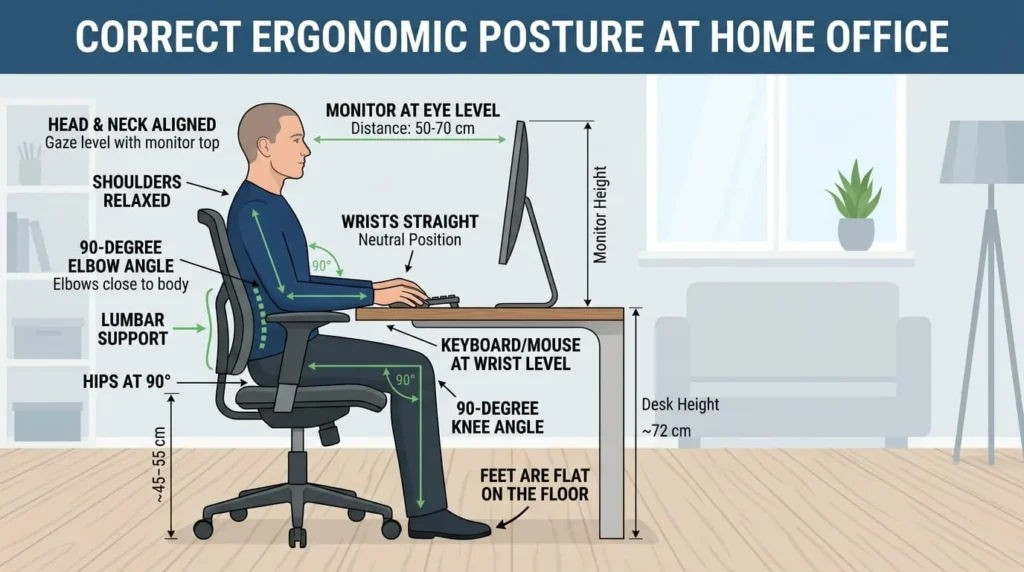
Ergonomics forms the foundation of a functional workspace. Sitting in an unsupportive chair at an improper height causes lower back pain, wrist strain, and neck tension over time.
Choosing the Right Ergonomic Chair
Your chair is the most critical equipment investment in your workspace. Avoid decorative dining chairs or soft accent seating that lack structural support. Look for an adjustable office chair that includes:
* Adjustable lumbar support to maintain the natural curve of your lower spine
* Height-adjustable armrests that allow your shoulders to remain relaxed
* A seat pan with depth adjustment to prevent pressure behind your knees
* Breathable mesh or supportive high-density foam fabric
Adjust the chair height so your feet rest completely flat on the floor with your knees bent at a 90-degree angle. If your feet dangle after adjusting the seat to match your desk height, add a firm footrest.
Desk Types and Optimal Heights
Standard desk height sits around 29 to 30 inches, which fits individuals around 6 feet tall. For shorter individuals, standard desks are often too high, forcing them to raise their shoulders unnaturally while typing.
A height-adjustable standing desk offers the flexibility to alternate between sitting and standing throughout the workday. Alternating postures reduces spinal compression, improves circulation, and keeps energy levels consistent. When standing, ensure your forearms rest parallel to the floor without leaning forward or hunching your shoulders.
Monitor Placement and Screen Ergonomic Standards
Incorrect monitor height causes users to tilt their heads down or strain their necks forward, leading to persistent neck and upper back pain.
Height, Distance, and Viewing Angles
Position your primary monitor directly in front of you, approximately an arm’s length away (20 to 30 inches). The top third of the screen should sit at or slightly below your direct eye level. This angle lets your eyes look slightly downward at the screen without forcing your neck to bend forward.
If using a laptop as your primary screen, place it on a dedicated laptop riser or a stack of sturdy books to elevate the display to eye level. Always pair an elevated laptop with an external keyboard and mouse to prevent wrist strain.
Dual Monitor and Ultrawide Configuration
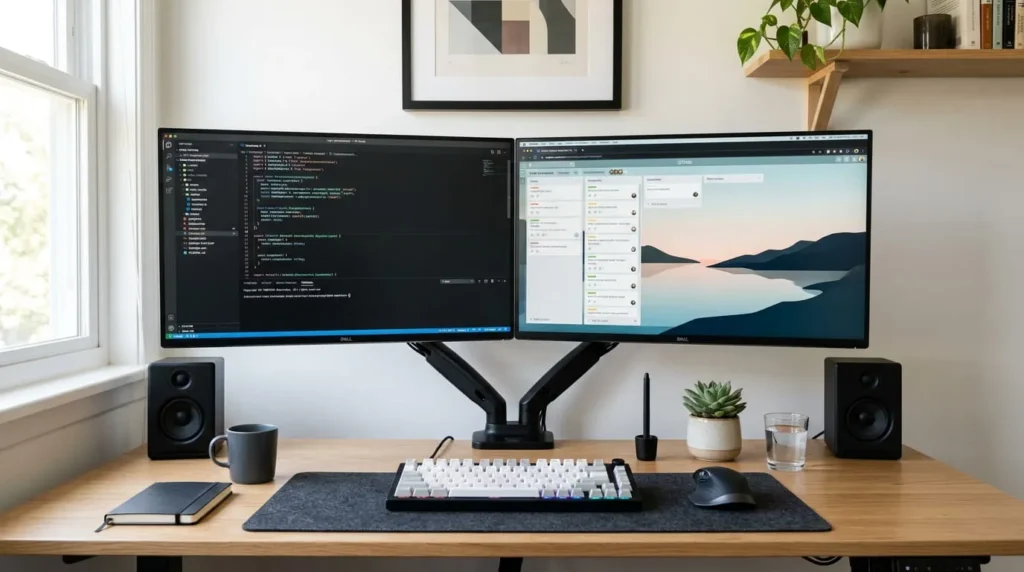
When using two screens of equal size, angle them slightly inward in a shallow V-shape, meeting directly in front of your nose. If you use one main display and a secondary screen for reference, place the main monitor directly in the center and position the secondary screen to the left or right at a slight angle.
Managing Office Lighting to Eliminate Eye Strain
Poor lighting leads to dry eyes, headaches, and afternoon fatigue. A well-lit workspace combines multiple light sources to create balanced, shadow-free illumination.
Balancing Ambient and Task Lighting
Relying solely on overhead room lighting creates harsh shadows across your workspace. Combine ambient lighting with an adjustable task lamp placed on the opposite side of your writing hand to prevent shadows across your documents.
Select LED bulbs with a color temperature between 3500K and 4500K for daytime work. This neutral-to-cool white temperature mimics daylight, helping maintain alertness without feeling harsh or clinical.
Preventing Screen Glare
Direct reflection on your monitor forces your eyes to work harder to read text. If moving your desk away from windows is impossible, install sheer blinds or light-diffusing shades. Alternatively, add a monitor light bar to the top of your display. Light bars illuminate your desk surface without creating glare on the screen glass.
Tech Infrastructure, Power, and Cable Management
A clutter of tangled power cables and unstable internet connectivity creates unnecessary daily friction. Addressing your technology needs early keeps your workspace clean and reliable.
Internet Reliability and Power Protection
A stable internet connection is essential for video conferencing and remote file access. While Wi-Fi is convenient, a direct Ethernet connection using a Cat6 cable provides faster speeds, lower latency, and protection against household signal drops.
Plug all sensitive electronics into a dedicated surge protector rather than directly into wall outlets. Look for a surge protector with a minimum rating of 1000 Joules to protect your computer, monitors, and external drives from unexpected electrical spikes.
Effective Cable Management Techniques
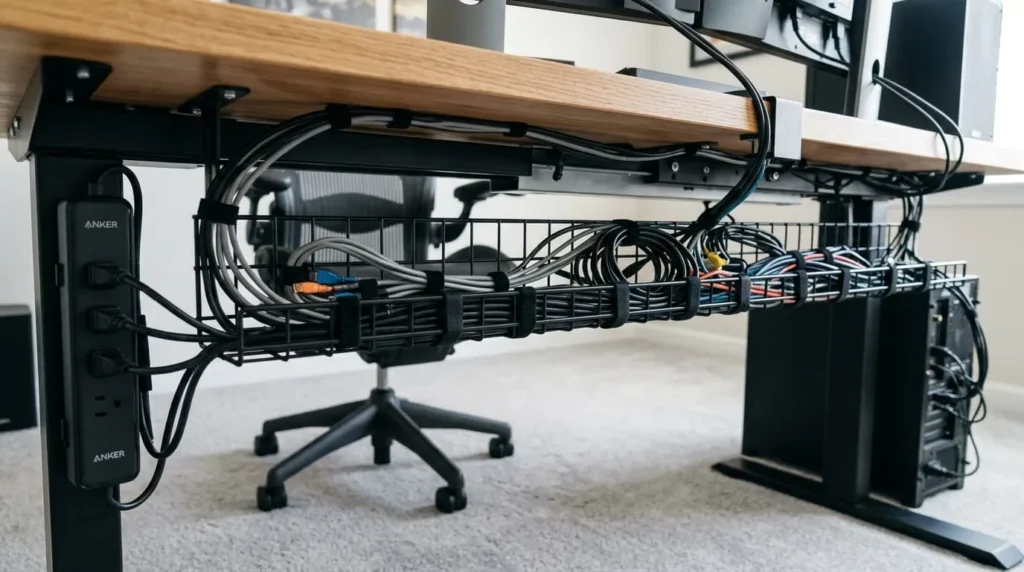
Unmanaged cables collect dust and create visual chaos that disrupts focus. Use simple tools to route and conceal power cords:
* Attach an under-desk cable management tray to hold power strips and power bricks
* Group loose cords together using reusable hook-and-loop cable ties
* Apply adhesive cable clips along the back edge of your desk to keep charging cables within reach
Storage, Organization, and Workflow Efficiency
Keeping your work surface clear keeps your mind focused. An overly cluttered desk reduces visual processing capacity and increases stress levels.
Desktop Cleanliness and the Reach Zone
Keep only items you use daily on your immediate desk surface. Place your keyboard, mouse, notepad, and water glass within comfortable arm’s reach. Move reference books, extra pens, and secondary device chargers into side drawers or wall shelves.
Adopt a clean-desk habit at the end of each workday. Spending two minutes returning items to their designated storage spots prevents clutter from accumulating overnight, ensuring a fresh start the next morning.
Physical Storage Solutions
If space is limited, utilize vertical space rather than expanding outward:
* Mount floating shelves above your monitor for reference materials and small decor
* Use a mobile rolling filing cabinet that tucks neatly under your desk
* Install a desktop pegboard on the wall beside your desk to hang headphones, scissors, and cables
Personalizing Your Environment for Daily Focus
While functionality comes first, your environment should feel inviting and comfortable for long work sessions. Small aesthetic adjustments significantly impact your daily mood and mental clarity.
Color Palette and Visual Elements
Wall colors influence mood and energy levels. Cool tones like muted blue, soft sage green, and warm gray promote calm concentration. Avoid painting your workspace bright red or intense yellow, as high-saturation colors cause visual fatigue over extended periods.
Incorporate personal items like artwork, family photos, or motivational prints, but keep them outside your direct line of sight when looking at your screen. Placing decor behind or to the side of your monitor keeps your visual field clear during focus hours.
Air Quality and Indoor Plants
Enclosed home spaces often suffer from elevated carbon dioxide levels, which cause drowsiness and reduced cognitive clarity. Open a nearby window for ten minutes each morning to circulate fresh air through the room.
Adding indoor plants improves air quality while bringing a restorative natural element to your desk. Resilient indoor plants like snake plants, pothos, or ZZ plants thrive in ambient indoor light and require minimal maintenance.
Troubleshooting Common Home Office Setup Challenges
Even well-designed home offices present unique challenges over time. Here is how to handle common pain points.
Working in Small or Shared Spaces
If your workspace resides in a bedroom or living area, use a folding desk screen or a bookshelf to create a visual barrier. When your workday ends, pack away your laptop or close your desk cabinet. Out-of-sight tools make it easier to disconnect mentally during personal hours.
Managing Household Noise Disruptions
If total quiet is impossible to achieve, invest in active noise-canceling headphones to block out low-frequency household noise. Additionally, download noise-suppression software for your computer to filter out background noises like barking dogs or family activity during client calls.
Creating a Dedicated Space That Works for You
Learning how to set up a home office requires balancing physical comfort, functional technology, and personal preferences. By prioritizing ergonomic seating, proper monitor positioning, flexible lighting, and smart cable management, you build an environment that supports your daily performance and protects your physical health over the long term.
Adjust your setup gradually as your work routine evolves. Small refinements to your chair height, light sources, or storage solutions pay off in greater comfort, steady energy, and consistent focus every day.