
If your wifi signal drops in the bedroom, buffers during video calls, or slows to a crawl once three people are streaming at once, the fix usually isn’t a new internet plan. Most weak wifi signal problems come down to where the router sits, what’s interfering with it, and how old the hardware is. Below are the fixes that actually move the needle, starting with the ones that cost nothing.
Start With Where Your Router Sits
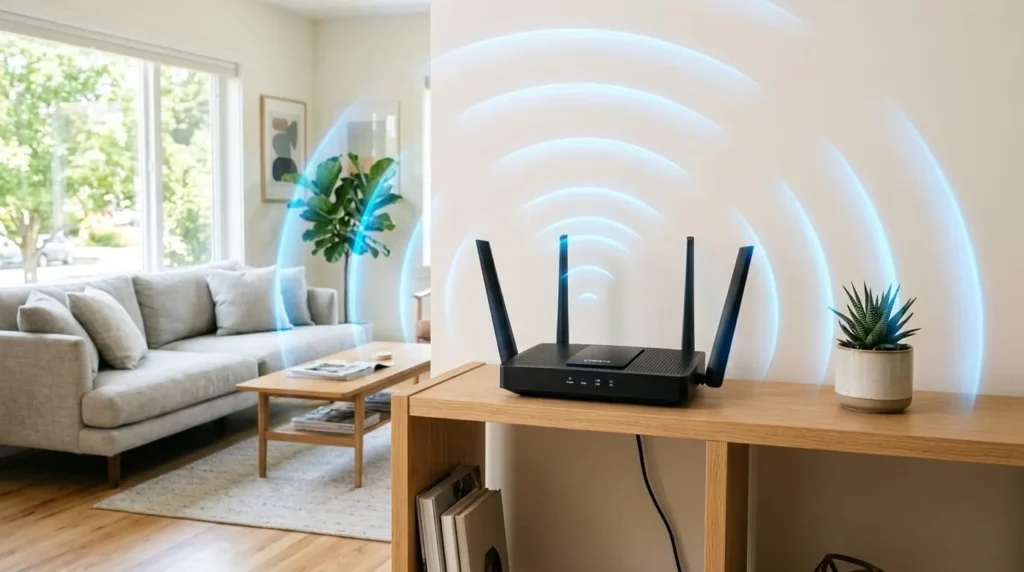
Router placement affects coverage more than almost anything else you can change, and it costs nothing to fix. Wifi signals spread outward in a sphere, not a straight line, so a router in a corner or a basement is already wasting half its range on walls and ground.
Move the router to a central spot in the home, ideally somewhere without walls separating it from the rooms you use most. Keep it elevated on a shelf or table rather than the floor, since low placement sends more signal into the ground than into your living space. If your router has external antennas, angle one vertically and one horizontally. This helps it reach devices held at different angles, like a phone in your hand versus a laptop on a desk.
Avoid tucking the router inside a cabinet or media console. Enclosed spaces trap heat and block signal, even when the cabinet door is open.
Move It Away From Devices That Interfere With the Signal
Wifi shares radio frequency space with a surprising number of household devices, and standard 2.4GHz wifi is especially crowded. Microwave ovens are the most disruptive, since they operate on almost the same frequency band and can noticeably slow a nearby connection while running. Cordless phones, baby monitors, and Bluetooth speakers cause similar problems when placed too close to the router.
Metal objects and mirrors reflect wifi signals rather than absorbing them, which scatters the signal in directions you don’t need. Fish tanks are an unusual but real culprit too, since water absorbs wifi frequencies efficiently. Keep at least a few feet of clearance between your router and any of these.
Update the Firmware and Pick a Better Channel
Why Firmware Updates Matter
Router manufacturers release firmware updates that patch security holes and improve how the router manages connected devices. An outdated router can develop connection drops or slowdowns that a firmware update resolves in minutes. Check your router’s admin panel or manufacturer app for a firmware update option, and set it to update automatically if that’s supported.
Finding a Less Crowded Wifi Channel
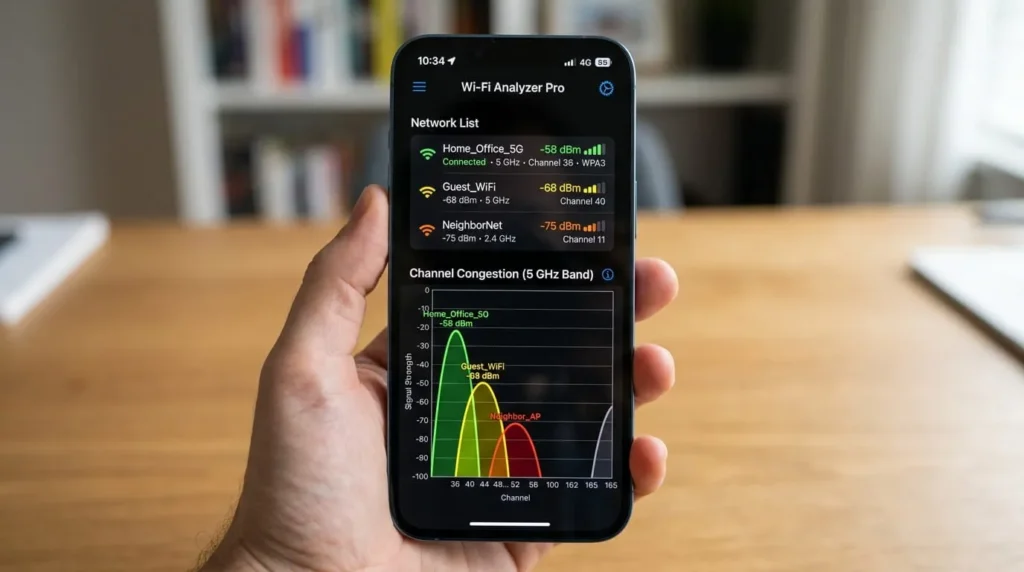
On 2.4GHz, only channels 1, 6, and 11 avoid overlapping with each other. If your neighbors’ routers are also broadcasting nearby, congestion on the default channel can slow your connection even with a strong signal. Most modern routers pick a channel automatically, but you can log into the admin panel and set it manually if automatic selection isn’t giving good results. A free wifi analyzer app on your phone will show which channels are least crowded in your building.
Understand 2.4GHz, 5GHz, and 6GHz Bands
Most routers sold in the last several years broadcast on two or three bands at once, and knowing the difference matters for troubleshooting. The 2.4GHz band travels farther and passes through walls more easily, but it’s slower and more congested since so many devices use it. The 5GHz band is faster and less crowded, though its range is shorter and it struggles more with walls and floors.
Newer routers also support 6GHz, which offers even more speed and far less interference, but only works with recently made devices and covers a smaller area than 5GHz. For a phone or laptop sitting near the router, connect to 5GHz or 6GHz for the best speed. For a smart thermostat or security camera two rooms away, 2.4GHz will likely give a steadier connection. If your router lets you rename each band separately instead of combining them, do this so you can choose manually instead of leaving it to guesswork.
Consider Upgrading to a Mesh System
1: When a Single Router Is Enough
A single router placed centrally can usually cover an apartment or a single-story home under about 1,500 square feet without dead zones. If your slow wifi signal is limited to one or two rooms, a placement change or a channel fix will often solve it without new equipment.
2: When You Need a Mesh System
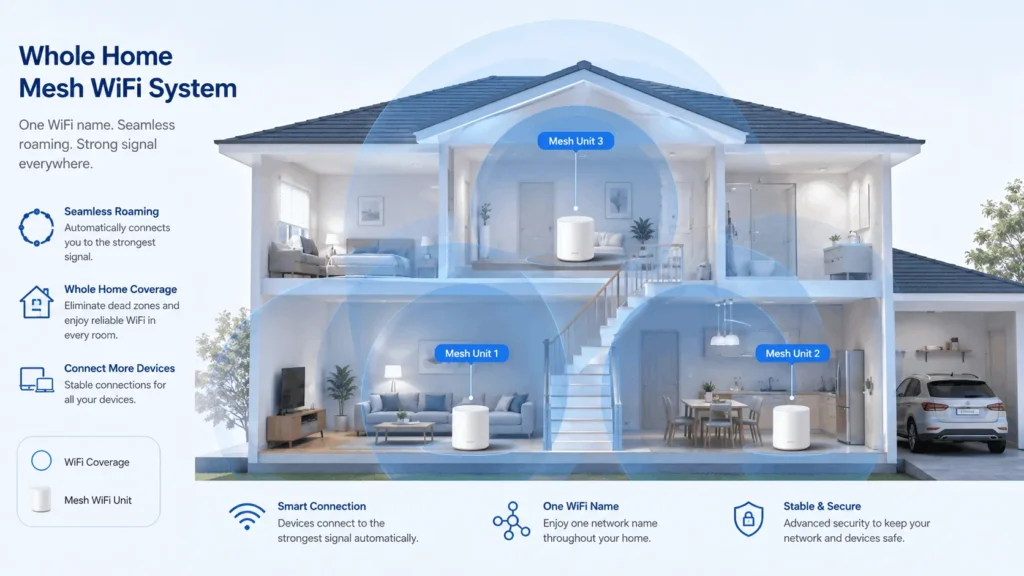
Homes with multiple floors, thick interior walls, or more than 2,000 square feet of space often have areas a single router can’t reach well. A mesh system uses two or more units placed around the home that work together as one network, so your device switches between them automatically as you move. This avoids the dropped connections that happen when a device stays locked onto a distant, weakening signal instead of switching to a closer access point.
3: Mesh Systems vs Wifi Extenders
A traditional wifi extender rebroadcasts your existing signal but usually cuts the speed roughly in half at the extended zone. A mesh system is a better investment for larger homes because each unit maintains a fast, dedicated connection back to the main router, rather than degrading the signal at each hop. Extenders remain a reasonable low-cost option for fixing a single weak spot, like a garage or a detached office.
Reduce Interference From Walls and Building Materials
Not all walls block wifi equally. Brick, concrete, plaster, and especially metal studs or foil-backed insulation absorb far more signal than drywall or wood framing. If a specific room always has weak coverage despite a good router and central placement, the building material in between is likely the cause.
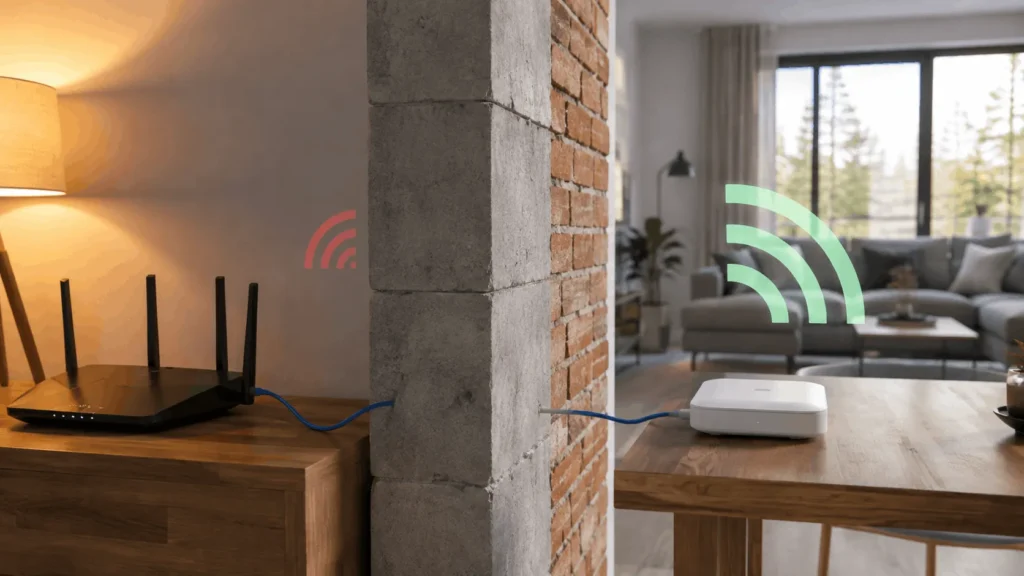
In these cases, a mesh unit or wired access point placed on the far side of the problem wall will do more good than any router upgrade. Running an ethernet cable to a secondary access point, even just one, gives that unit a wired connection instead of relying on a wireless signal, which produces noticeably better results than a wireless extender in the same spot.
Secure Your Network So You Aren’t Sharing Bandwidth
An unsecured or weakly secured network lets neighbors or passersby connect without your knowledge, which quietly eats into the bandwidth and speed available to your own devices. Use WPA3 encryption if your router supports it, or WPA2 if it doesn’t, and set a strong password rather than the default one printed on the router. Change the default admin username and password too, since these are publicly known for most router models and are a common entry point for someone to alter your settings.
If you have guests connecting regularly, set up a separate guest network. This keeps their devices off your main network and limits what they can access on it.
Build a Simple Maintenance Habit
Routers that run for months without a restart can accumulate memory issues that slow performance gradually, in a way that’s easy to miss day to day. Restarting your router every few weeks clears this buildup. Many routers let you schedule an automatic restart at a low-use time, like 4 a.m., so you don’t have to remember to do it manually.
Dust buildup inside the router can also cause overheating, which throttles performance to protect the hardware. Wipe down the vents occasionally and make sure the router has open space around it for airflow.
When the Problem Isn’t Your Wifi at All
Before spending money on new hardware, connect a laptop directly to the router with an ethernet cable and run a speed test. If the wired speed matches what you’re paying for, your wifi setup is the bottleneck and the fixes above should help. If the wired speed is already far below what your plan promises, the problem sits with your internet service, not your wifi, and no router change will fix it. In that case, contact your provider or consider a plan upgrade instead.