
Resetting your console is different from restoring default settings, and mixing the two up is the most common way people lose game saves they meant to keep. If you’re selling your PS5, giving it away, or trying to fix a software problem that clearing the cache didn’t solve, a factory reset wipes the system back to its out-of-box state. This guide walks through backing up your data, resetting through the normal menu, resetting through Safe Mode when the console won’t boot properly, and what to do once the reset finishes.
What a Factory Reset Actually Deletes
A full reset removes every game, app, screenshot, video clip, and saved trophy that lives on the console’s internal storage. It also signs out and deactivates your PlayStation Network account from the system, removes any linked payment methods, and clears paired Bluetooth devices like headsets. Once the reset finishes, the console reboots into the same setup screen you saw the very first time you turned it on.
This is different from Restore Default Settings, an option in the same menu that only reverts picture, sound, and accessibility settings to factory defaults. Restoring default settings does not touch your games, saves, or account. People who want a fresh start because their PS5 feels sluggish often only need this lighter option, not a full reset.
Back Up Your Data Before You Reset
Skip this step and there is no way to recover anything afterward, since a factory reset is not reversible. Give yourself ten minutes here even if you are certain you already have everything saved elsewhere.
Backing up through PlayStation Plus cloud storage
If you subscribe to PlayStation Plus, go to Settings, then Saved Data and Game/App Settings, then Saved Data, and select Console Storage. Choose Upload to Cloud Storage, then select individual games or use Select All to back up everything at once. Cloud storage is the simplest method because you can restore saves directly to any PS5 signed into your account later, without a USB drive.
Backing up with a USB drive
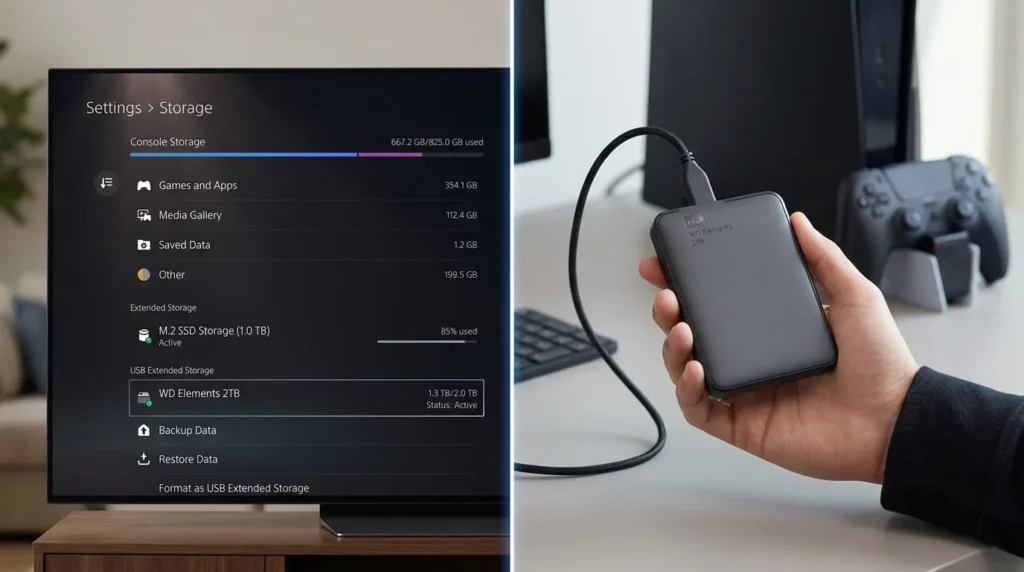
If you are not a PS Plus subscriber, or you want a local copy as a safety net, format a USB drive as FAT32 or exFAT and plug it into a rear USB port. From Saved Data, choose Copy to USB Drive instead of the cloud option. For a more complete backup that includes settings and captured media alongside your saves, go to Settings, then System, then System Software, and select Back Up and Restore. This creates a full system backup you can later apply to the same console after the reset, though it needs enough free space on the drive to hold everything.
How to Factory Reset a PS5 From the Settings Menu
Once your data is backed up, the standard reset takes only a few minutes to start.
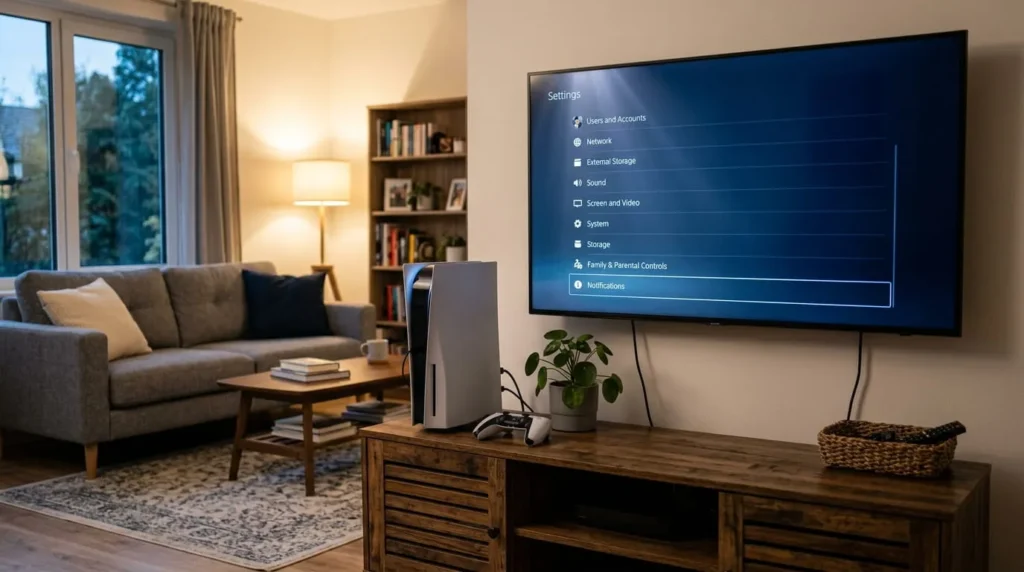
- From the home screen, go to Settings, then System.
- Select System Software, then Reset Options.
- Choose Reset Your Console. Do not confuse this with Restore Default Settings, which sits in the same list but does something different.
- Read the warning screen, which lists exactly what will be removed.
- Select Reset to confirm.
The console will restart on its own and take you through the reset process automatically. When it finishes, you will land on the same welcome screen shown on a brand new PS5, ready for setup or for a new owner.
How to Factory Reset a PS5 in Safe Mode
Use this method when the console freezes on the home screen, gets stuck during startup, or the display shows nothing at all. Safe Mode loads only the essential system functions, which lets you reset even when normal navigation is impossible.
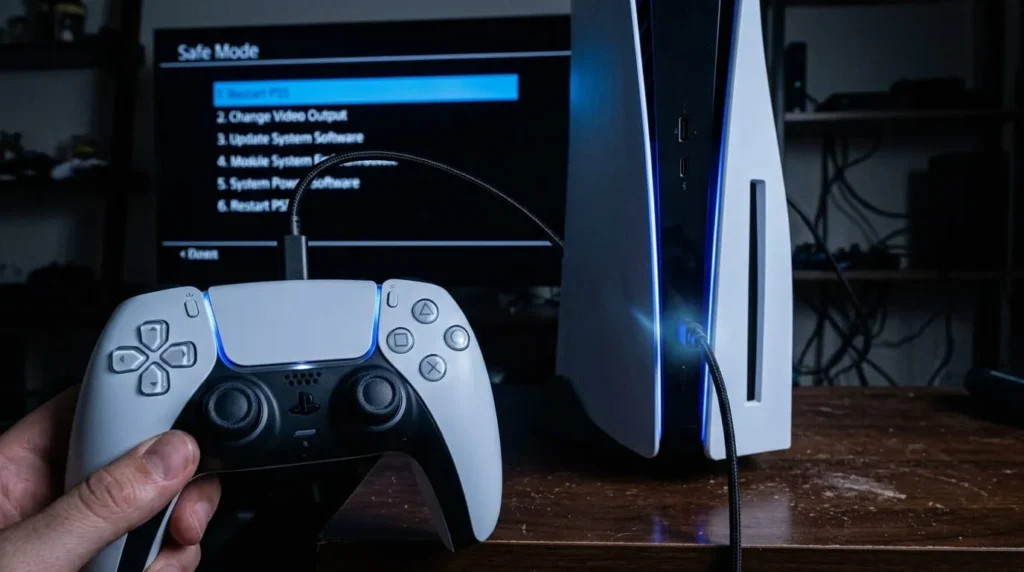
- Press and hold the power button on the front of the console for at least three seconds, until it fully shuts down. You will feel or hear the fans stop and the light turn off.
- Press and hold the power button again. Release it only after you hear a second beep, which happens roughly seven seconds after the first beep.
- Connect your DualSense controller to the console using a USB cable. Safe Mode will not recognize a wireless connection, even if the controller is already paired.
- Press the PS button on the controller to enter the Safe Mode menu.
- Select Reset PS5 (Delete Everything) to fully wipe the console, or choose Restore Default Settings if you only need to revert display and audio settings without losing data.
Safe Mode also includes options to rebuild the system database or reinstall the system software, which are worth trying first if the goal is fixing a glitch rather than wiping the console entirely. A full reset from Safe Mode should be treated as a last resort after those lighter fixes fail.
Resetting Your PS5 Controller Separately
A factory reset of the console does not automatically fix controller issues like drift or connection drops, since the DualSense stores its own pairing data. To reset just the controller, locate the small reset button in a pinhole on the back of the DualSense, near the L2 shoulder button. Insert a paperclip or SIM ejector tool and press it for a few seconds until you feel it click. Reconnect the controller to the console with a USB cable and press the PS button to re-pair it. This clears the controller’s internal Bluetooth connections and is often enough to fix pairing problems without touching the console itself.
Setting Up Your PS5 After the Reset
If you are keeping the console, connect it to your network during the setup screens and sign back into your PlayStation Network account. Your trophies, friends list, and PlayStation Plus subscription status are tied to your account rather than the console, so they return automatically once you sign in. Redownload your games from your library, then restore saves from cloud storage or your USB backup through the same Saved Data menu you used before the reset.
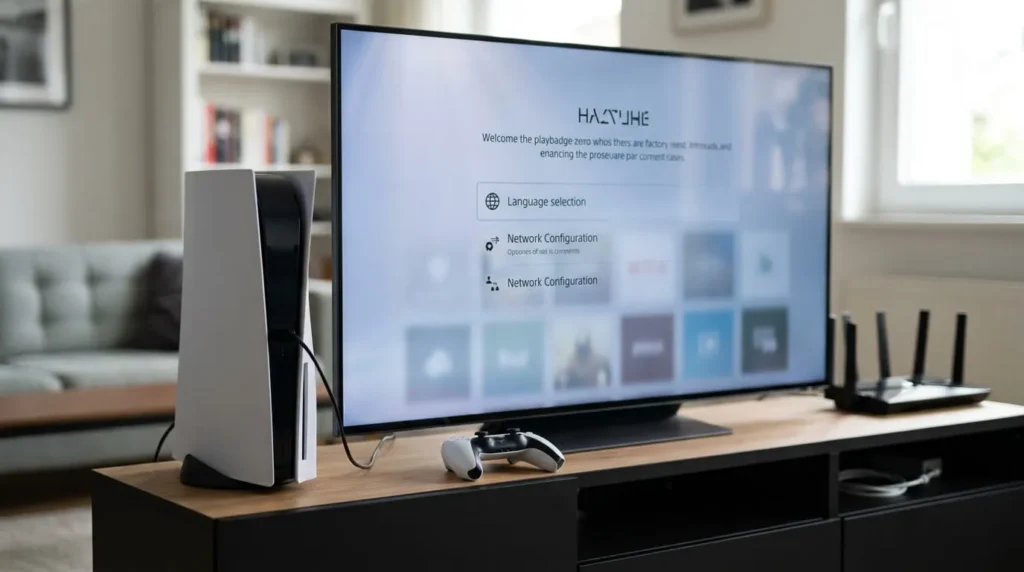
If you are selling or giving away the console, stop at the welcome screen and hand it over without signing in. Before you do, double check that your account was actually removed by looking for it under Settings, then Users and Accounts, if you still have access. Deactivating the console as your primary PS5 beforehand, found under Account, then PS5 Console Sharing and Offline Play, prevents ownership conflicts for the new owner.
Common Reset Problems and Fixes
The reset process stalling partway through usually means a storage or software issue rather than a failed reset attempt, so give it extra time before assuming something is wrong. If the console won’t power on at all afterward, hold the power button for a full ten seconds to force a shutdown, then try turning it on again. A reset that keeps looping back to Safe Mode instead of completing setup often points to corrupted system software, which the Update System Software option in Safe Mode can fix by reinstalling from a USB drive with the latest firmware file placed in a folder named PS5, then Update.
If your controller won’t sync after the reset, try a different USB cable, since some charge-only cables can’t transfer data needed for pairing. Games that fail to redownload are usually a PlayStation Network licensing delay rather than a problem with your console, and they typically resolve within a few hours of signing back in.