
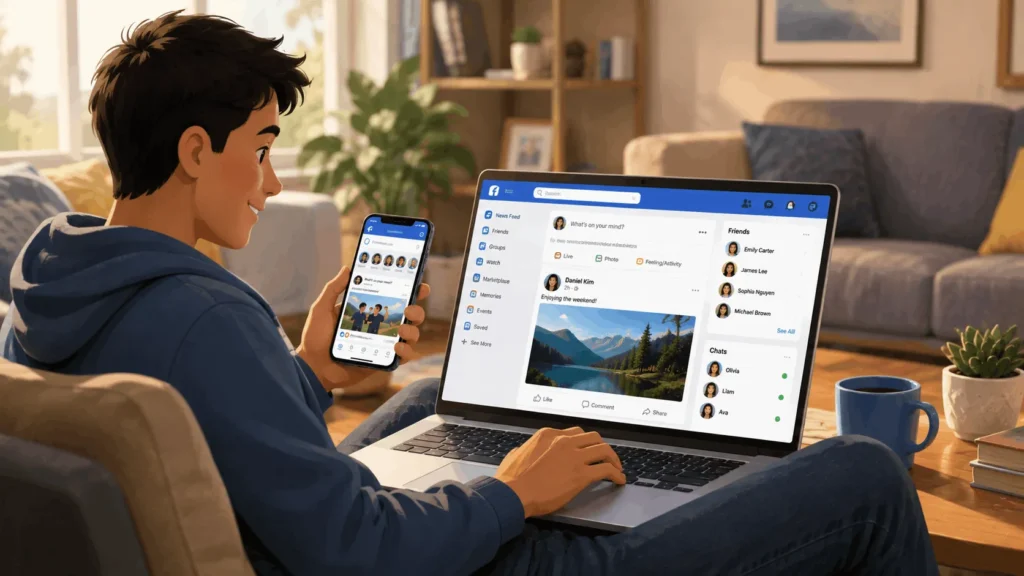

Facebook can feel confusing the first time you open it. A news feed, friend requests, groups, and settings menus all compete for your attention. Learning how to use Facebook doesn’t require any technical skill. It just takes knowing where to look and what each feature does. This guide walks through account setup, your profile, and privacy controls. It also covers the features you’ll use most, so you can start posting, connecting, and browsing with confidence.
What Facebook is Actually For
Facebook is a place to share updates, photos, and videos with people you know. It’s also a place to follow pages, groups, and public figures you’re interested in. Some people use it mainly to keep up with family members who live far away. Others join mainly for local buy-and-sell groups, community events, or hobby communities.
There’s no single right way to use it. You can post often, post rarely, or never post at all and just browse. The features below cover the core actions almost everyone ends up using.
If privacy is a top concern, you can still use Facebook mostly for messaging and browsing. You don’t have to post publicly, or at all, to get value from the platform. Adjusting your settings early makes this far easier than fixing it after sharing something you regret. Keeping the app itself out of easy view is another option on iPhone — this guide on how to hide apps on iPhone covers the exact steps.
Setting up your Facebook Account
What You Need Before you Sign Up
You need an email address or a mobile phone number. You’ll also need a birthdate that shows you’re at least 13 years old. Facebook requires your real name for a personal profile, not a business name or nickname.
If you want a presence for a business, brand, or organization, that belongs on a Facebook Page. Pages and personal profiles work differently and serve different purposes.
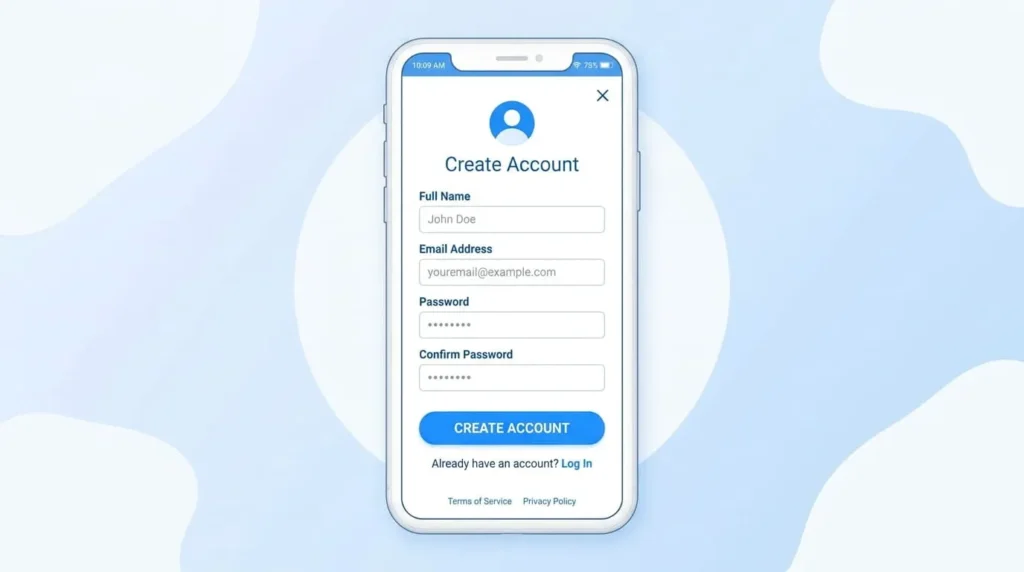
Creating your Account Step By Step
- Go to facebook.com or open the Facebook app and select “Create new account.”
- Enter your first and last name, then your email address or phone number.
- Choose a password you don’t reuse on other sites.
- Enter your birthday and select your gender.
- Select “Sign Up,” then confirm your email or phone number when prompted.
The whole process takes about two minutes. Facebook may ask you to confirm your identity with a code sent by text or email before your account becomes fully active.
Building your profile
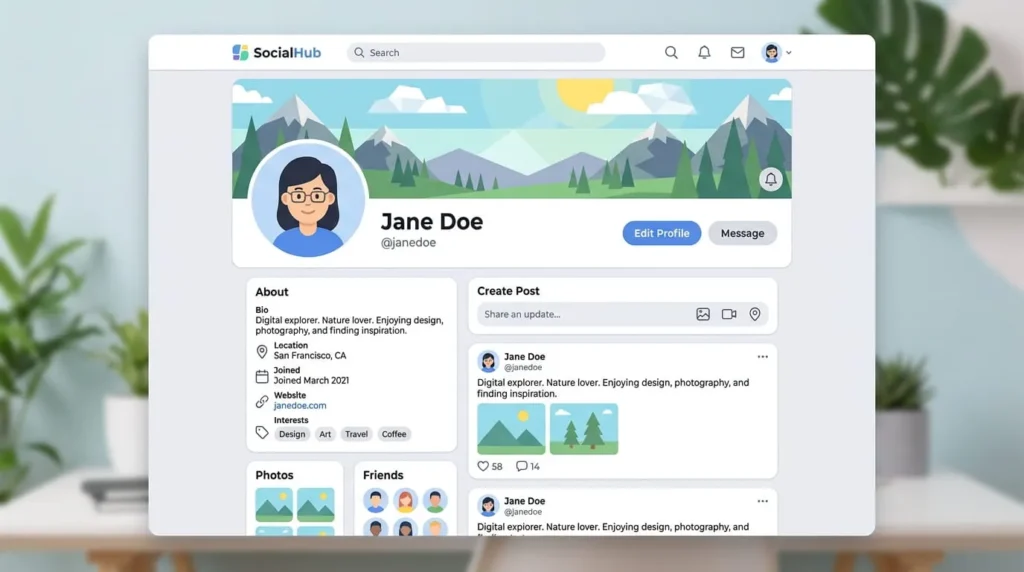
Your profile is what other people see before deciding whether to accept a friend request. It’s also what helps them trust a message from you. A complete profile makes it easier for real friends and family to find you among people who share your name.
Choosing a Profile Picture And Cover Photo
Add a clear photo of your face as your profile picture. This is how friends recognize you in search results and friend suggestions. Your cover photo sits behind your profile picture and can show almost anything you like, from a landscape to a family photo. Both can be changed anytime by clicking directly on the image.
Filling Out your About Section
Under the “About” tab, you can add your hometown, workplace, school, and relationship status. None of this is required. Add only what you’re comfortable sharing. Some details can be visible to people outside your friend list, depending on your privacy settings.
Understanding your News Feed
Your news feed is the scrolling stream of posts on your home page. It mixes updates from friends, pages you follow, groups you’ve joined, and ads. Facebook’s algorithm ranks what you see based on your past activity, including what you’ve liked, commented on, and spent time reading.
If your feed feels cluttered, you can adjust it. Open the menu, go to “Feeds,” and choose “Favorites” to see posts only from people and pages you’ve selected. You can also unfollow someone without unfriending them. That removes their posts from your feed while keeping the friendship intact.
You’ll also see ads mixed into your feed, based on activity both on and off Facebook. Tap the three dots in the corner of any ad to see why you’re seeing it. From there, you can hide ads from that advertiser or adjust your ad preferences.
Finding and Adding Friends
There are three practical ways to build your friend list. You can search for a person’s name directly. You can also browse the suggestions Facebook generates from mutual friends. Or import your phone or email contacts so Facebook can match them to existing accounts.
Sending a friend request doesn’t notify the other person until they open the app. They can accept, ignore, or decline without you knowing which one they chose. A personal profile can have up to 5,000 friends. Past that limit, new connections can only follow you instead.
How To Use Facebook to Post Updates
The text box at the top of your feed usually says “What’s on your mind?” That’s where most posting starts. From there you can share plain text, photos, videos, links, or a status with a colored background instead of a photo.
Beyond basic posts, you can check in at a location or tag friends who are with you. You can also create a poll or share that you’re supporting a nonprofit. Facebook Stories work differently, since anything posted to a Story disappears after 24 hours. That makes Stories useful for casual updates you don’t want sitting on your permanent timeline.
Privacy And Safety Settings You Should Know
Controlling Who Sees Your Posts
Every time you post, a small audience selector next to the post button lets you choose who sees it. Options include the public, your friends, or a custom list you build yourself. You can also set a default audience for future posts under Settings, then Privacy.
It’s worth reviewing this before posting anything personal for the first time. A public post can be seen by anyone on or off Facebook. That includes people who search your name without an account of their own.
Protecting Your Account From Scams And Unwanted Contact
Facebook accounts are a common target for impersonation and phishing attempts. Turn on two-factor authentication under Settings, then “Accounts Center,” then “Password and security.” That way, a stolen password alone can’t get someone into your account.
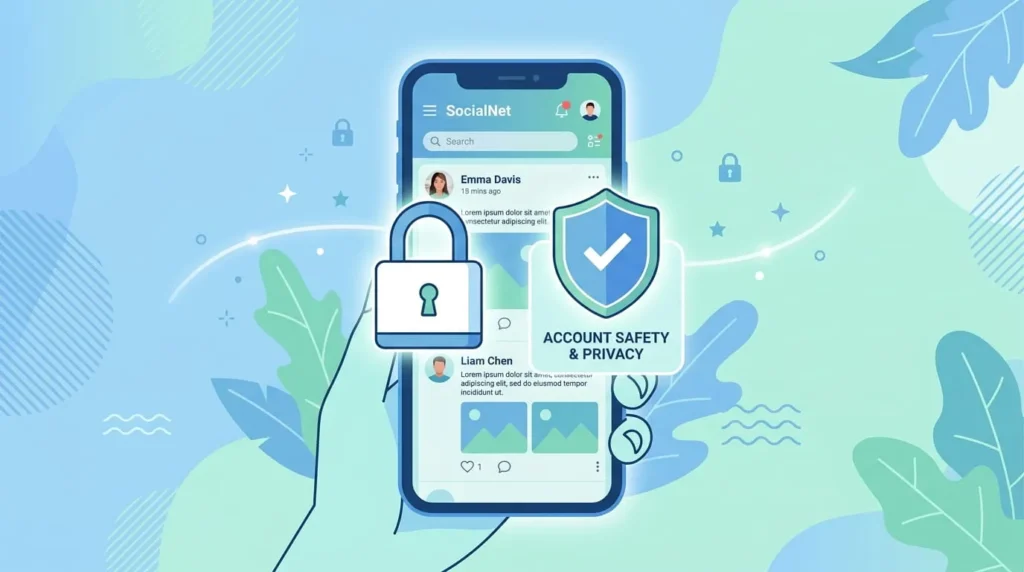
Be cautious of friend requests from people you don’t recognize, especially if they claim to already know you. Watch for anyone who brings up money, prizes, or romance quickly. Legitimate friends and family rarely ask for gift cards or wire transfers through Messenger. If something feels off, verify through another channel before responding.
Facebook Groups, Marketplace, And Events
Groups bring together people around a shared interest, neighborhood, or hobby. You can join public groups instantly. Private groups require an admin to approve new members before they can see posts.
Marketplace works like a local classifieds board built into Facebook. You can browse listings near you, message a seller directly, or list your own items for sale without leaving the app.
Events let you see gatherings your friends are attending or that local pages have posted. You can RSVP and invite friends to anything you’re hosting yourself. Both virtual and in-person events appear the same way in your calendar.
Using Messenger to Stay in Touch
Messenger is Facebook’s built-in chat tool, reachable through the message icon on any page. You can start a one-on-one conversation, create a group chat with several friends, or make a voice or video call.
You don’t need to keep the main Facebook app open to use Messenger. It works as its own app on mobile devices and opens in a separate window on desktop.
Facebook on Desktop Versus Mobile
Facebook works a little differently depending on where you access it. On mobile, the app organizes features into a bottom or side menu. Marketplace, Groups, and Notifications each get their own icon. On desktop, that same navigation mostly lives in the left sidebar of your home page, with search and Messenger near the top.
Some features exist only on mobile, like scanning a QR code to add a friend quickly or using camera effects in Stories. If a setting seems to be missing, check whether you’re comparing the app to the desktop site. Menus are labeled a little differently between the two.
Facebook Etiquette For New Users
A few habits make Facebook more comfortable to use, both for you and for the people connected to you. Think about who might see a post before sharing something emotional or reactive. Posts are easy to share but hard to fully take back.
Ask before tagging someone in a photo they might not want public. Avoid posting other people’s personal details, like their address or phone number, without permission. If you disagree with someone in a group or comment thread, a private message usually resolves things better than a public back-and-forth.