

If your iPhone runs iOS 18 or later, learning how to hide apps on iPhone takes about ten seconds. It comes down to one built-in setting. Older iPhones can still push an app out of easy view, though it stays one search away. This guide covers the official Face ID hide feature first. Then it covers the folder and Home Screen tricks that came before it. It also explains the settings that keep an app out of search results and Siri suggestions. Along the way, it clears up what “hidden” actually means on an iPhone. A hidden app is not invisible in every part of the system. Screen Time, Battery Usage, and your App Store purchase history can all still list its name. By the end, you will know which method fits your iPhone and what a hidden app still reveals.
The Fastest Way to Hide an App (iOS 18 and Later)
Apple built app hiding directly into iOS starting with iOS 18. It locks the app behind Face ID, Touch ID, or your passcode. Then it moves the app out of sight entirely. This is the method most people mean when they search for how to hide apps on iPhone. It takes fewer steps than any workaround. It also does not require deleting or reinstalling anything.
To hide an app:
- Find the app on your Home Screen.
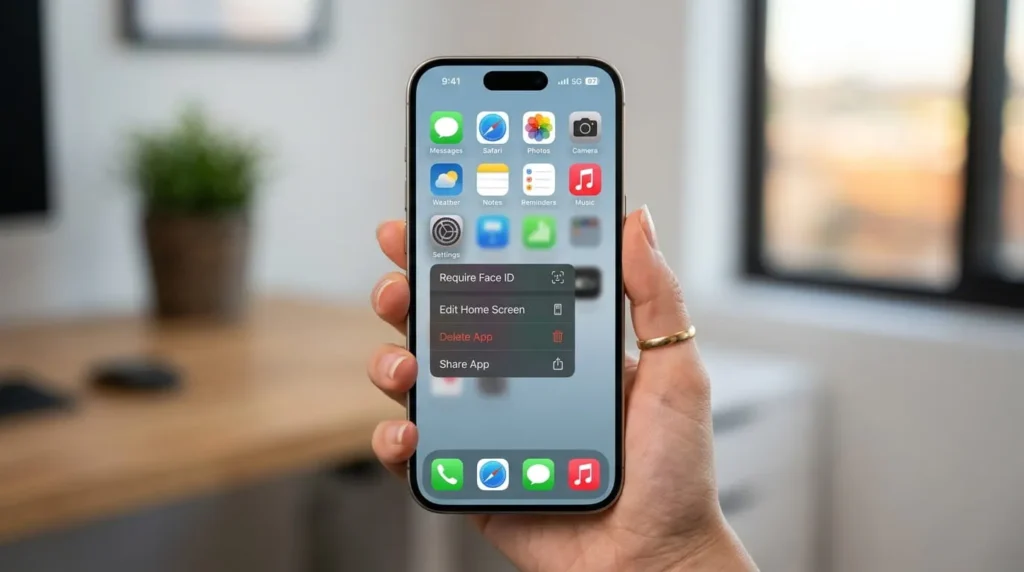
- Touch and hold the icon until the quick actions menu appears.
- Tap Require Face ID (or Touch ID, or Passcode, depending on your setup).
- Tap Hide and Require Face ID, then authenticate.
- Tap Hide App to confirm.
The icon disappears from your Home Screen immediately. There is no confirmation screen asking if you are sure. Double-check the app name before you confirm the hide.
Where Hidden Apps Go
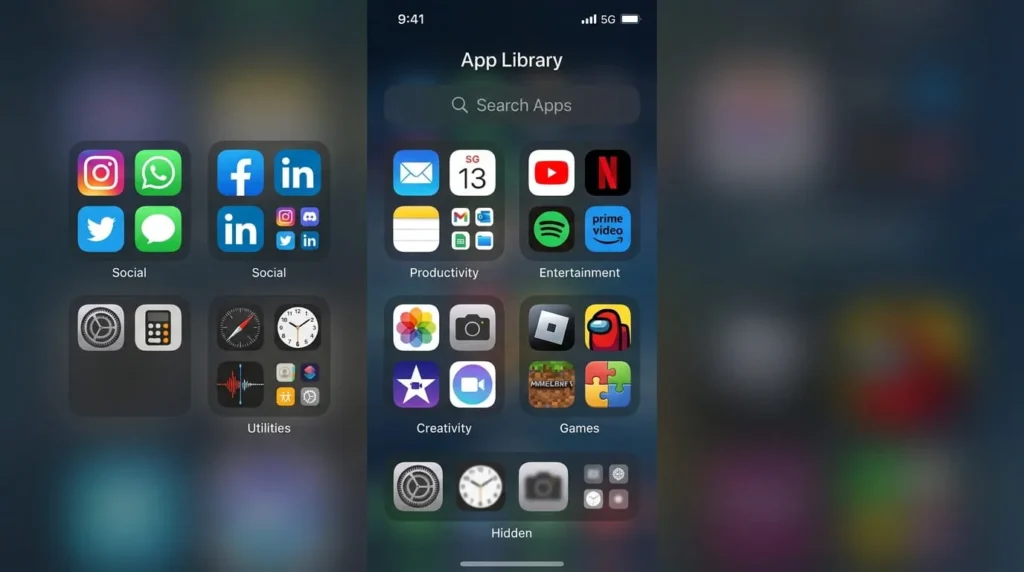
A hidden app moves into a folder simply called Hidden. That folder sits at the very bottom of your App Library. You will not stumble onto it by accident. It sits below every alphabetical and category folder that App Library normally uses.
How to Open an App You’ve Hidden
Hidden apps still work exactly the same once you unlock them. To get to one:
- From the Home Screen, swipe left past all your pages to reach App Library.
- Scroll to the bottom and tap the Hidden folder.
- Authenticate with Face ID, Touch ID, or your passcode.
- Tap the app you want, then authenticate a second time to open it.
The double authentication feels redundant the first time. It exists because opening the folder and opening the app are two separate privacy checkpoints.
How to Unhide an App
If you change your mind, reversing this is just as quick. Open the Hidden folder as above, then touch and hold the app you want back. Tap Don’t Require Face ID (or Touch ID or Passcode), then authenticate. The app returns to App Library near the top, sorted with your other apps again. It will not automatically reappear on your Home Screen, so you will need to drag it there yourself.
What “Hidden” Actually Hides, and What It Doesn’t
This is the part most guides skip, and it matters if your reason for hiding an app is privacy rather than tidiness. Hiding an app removes it from your Home Screen and from Spotlight search. It also removes the app from Siri suggestions and from your call history if the app makes calls. Notification previews for a hidden app stop appearing on your Lock Screen too.
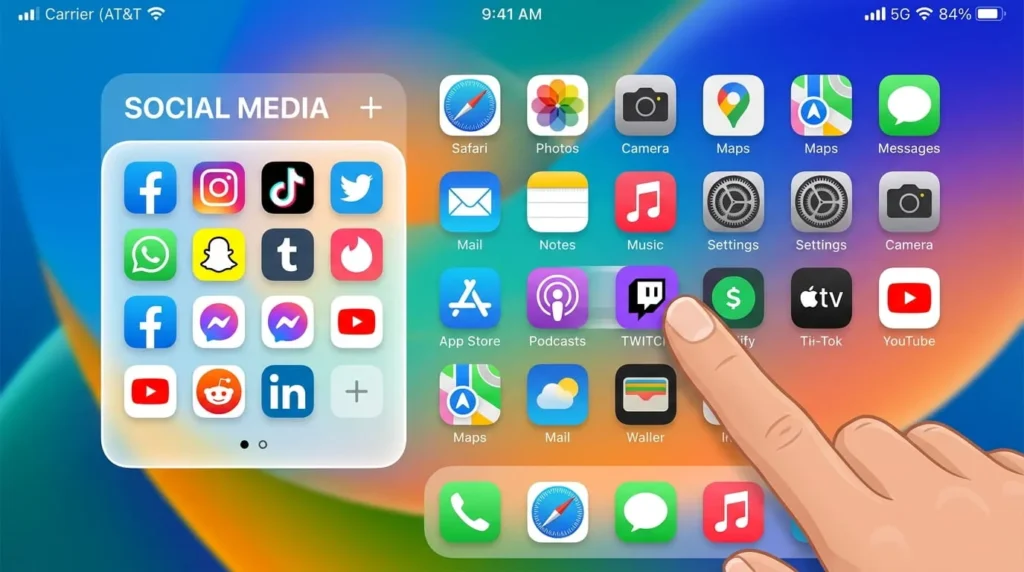
What it does not do is erase every trace of the app from your iPhone. The app’s name can still show up in Settings under Screen Time. It can also appear in Battery Usage by App and in your App Store purchase history, unless you hide that separately. Someone who knows exactly where to look could still find evidence the app exists. For most everyday situations, like a partner or roommate glancing at your phone, hiding through Face ID is more than enough. For anything higher stakes, understand that hiding is not the same as making an app’s existence undetectable.
No iOS 18? Here’s What Still Works
If your iPhone is running an older version of iOS, you will not see the Require Face ID option. You still have three practical ways to keep apps out of casual view.
Remove an App from the Home Screen
Touch and hold any app icon, then tap the minus or Remove App option. Choose Remove from Home Screen instead of Delete App. The icon vanishes from your Home Screen, but the app itself, along with all its data, stays installed. Anyone can still find it by swiping into App Library or by typing its name into Search. This method hides clutter more than it hides privacy.
Bury an App Inside a Folder
Dragging an app into a folder, then into a second folder page inside it, makes it harder to spot. A quick glance rarely finds it. Long-press a blank part of the Home Screen until icons jiggle. Drag the app you want to hide on top of another app to create a folder. Open that folder, then drag the app to the right edge to create a second folder page. Apps buried two folder pages deep rarely get noticed during a casual scroll. This trick relies entirely on the other person not looking closely.
Hide an Entire Home Screen Page
If you want to hide several apps at once, hide a whole page instead of moving apps one by one. First move the apps you want gone onto their own dedicated page. Then long-press a blank area of the Home Screen to enter jiggle mode. Tap the row of dots above the dock. Uncheck the page you want to remove from view. The page and everything on it disappear from your Home Screen but stay fully accessible through App Library.
Stop an App from Showing Up in Search and Siri Suggestions
Hiding an icon does not stop iOS from suggesting the app elsewhere. You need to turn that off separately. Go to Settings, then Siri & Search, then select the app in question. Turn off Show in Search and Show in Siri Suggestions. This keeps the app from surfacing when you swipe down to search. It also stops Siri from predicting the app as something you might open next. That matters if the app’s name alone would give something away.
Hide Your App Store Purchase History
Even a fully hidden or deleted app can linger in your App Store purchase history. To clear it from view, open the App Store and tap your profile icon in the top right. Choose Apps & Purchase History, or Your Apps if you are in a Family Sharing group. Find the app, swipe from right to left, and tap Hide. You can always reverse this later from the same menu under Hidden Purchases.
Lock vs. Hide: Which One Do You Need
Apple actually offers two separate protections, and it helps to know the difference before you pick one. Locking an app leaves its icon exactly where it is. It just requires Face ID, Touch ID, or a passcode to open the app. Hiding does everything locking does, then also removes the icon from your Home Screen and moves it into the Hidden folder.
Choose locking when you want an app to stay visible and easy to find. You still want a barrier before someone can open it. Choose hiding when you don’t want the app’s presence advertised at all. A banking app is often a good candidate for locking alone, since you probably want quick access to it yourself. A dating app or a private journal is a better candidate for full hiding.
Hiding Apps on a Shared or Family Device
Family Sharing changes a few things about how hiding works. A child under 13 in a Family Sharing group cannot lock or hide apps at all. The feature simply isn’t available to that age group. A teenager between 13 and 17 can lock or hide apps on their own device. A parent or guardian in the family group can still see that the app was downloaded. They just can’t open it or see it on the Home Screen.
If you share an iPhone instead of using separate Apple accounts, remember that hiding is device-specific, not account-specific. Anyone who unlocks the phone with their own Face ID or passcode gets the same access you do, if you added them as an alternate appearance. A passcode-only device share defeats the purpose of hiding, since whoever holds the passcode can reach the Hidden folder too.
Apps You Can’t Hide
Not every app on your iPhone can be hidden. Apps that ship preinstalled with iOS, such as Settings, Camera, Phone, and Messages, cannot be locked or hidden through this feature. Only apps you downloaded yourself from the App Store are eligible. If you’re trying to hide a built-in app, your options are limited. Burying it in a folder or removing it from your Home Screen is as far as it goes. Apple does not allow full hiding for system apps.
Should You Trust a Third-Party App to Hide Apps
App Store listings occasionally advertise apps that claim to lock or vault other apps behind a PIN. Be cautious here. These apps typically cannot actually hide or restrict another app’s icon or data. iOS does not grant one app that level of control over another. At best, they create a decoy interface. At worst, they ask for permissions or account access you don’t need to grant. Apple’s own Face ID hide feature accomplishes the same goal without handing a third party access to your device.